Compare Against Control (Go-by / Reference Set)
Some sets aren't compared against an earlier revision. They're compared against a reference: a prototype, a template, a firm standard set, or a go-by from a past project. Compare Against Control checks that the target set includes everything from the control, correctly.
Use case: confirm a store set includes every element from the prototype.
Compare Against Control is switched on per organization. If you don't see it in the Tools panel and your work involves prototype or template conformance, talk to us.
How it differs from Compare Versions
- Compare Versions asks "what changed between rev 1 and rev 2 of the same set?"
- Compare Against Control asks "does the target include everything from the control, correctly?" It's a field-by-field check, not a diff.
Starting a comparison
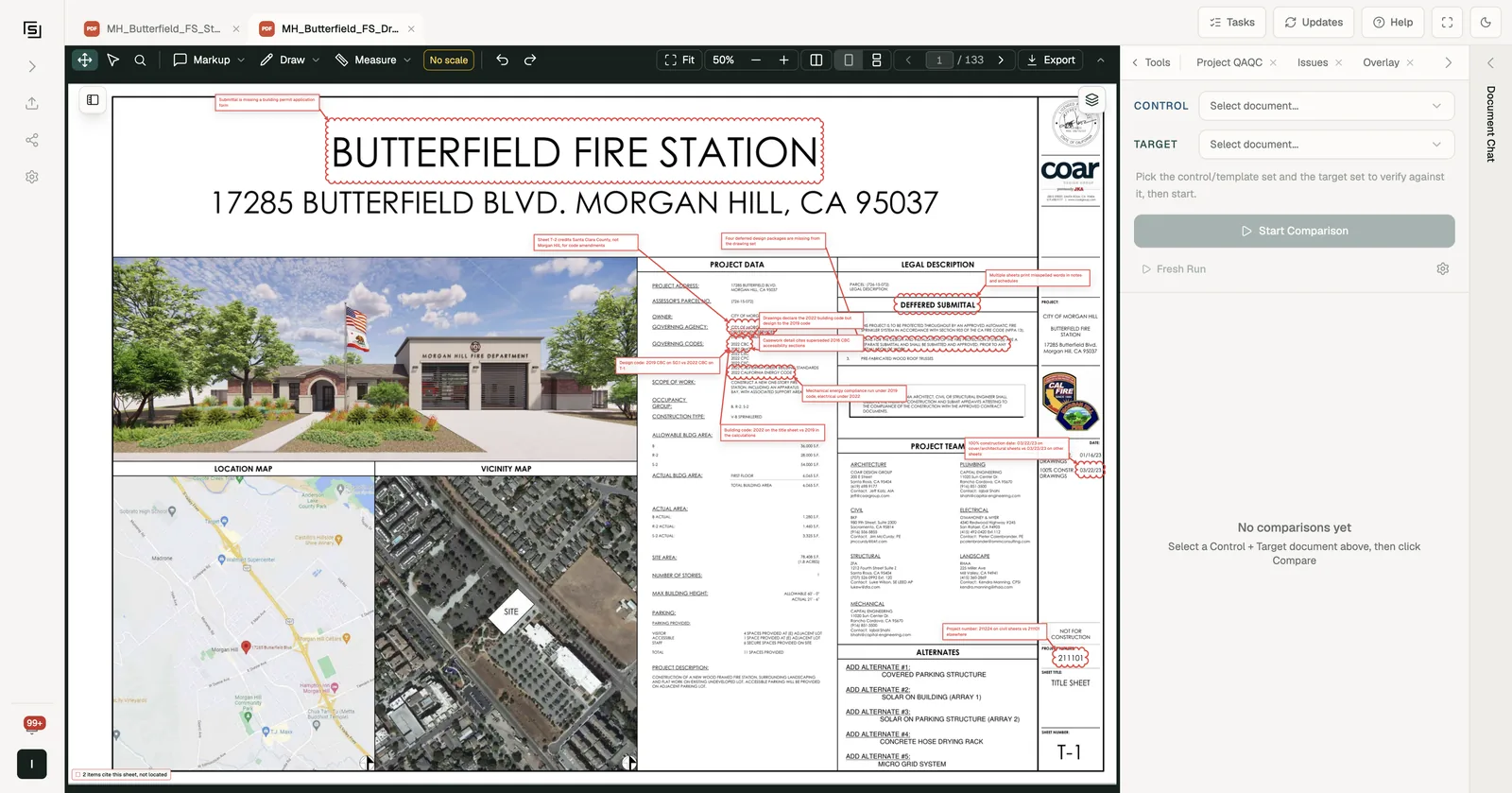
- Open a project, open the Tools panel and choose Compare Against Control under Compare.
- Pick the reference set in Control and the set you're checking in Target.
- Click Start Comparison.
If either document is still being processed, the comparison starts by itself once it's ready. If you've already compared the same two documents, you're taken to the existing results instead of starting a second run.
Reading the results
The platform pairs each control page with the most similar page in the target, then checks the target field by field: required elements, values and notes. Every field is marked:
- Match - present in the target and the same as the control.
- Different - present in both, but the target doesn't agree with the control.
- Missing in B - in the control, but not found in the target.
Use the Missing in B and Different filters to see only what needs attention. Each finding comes with a recommended action and is boxed on both sheets, and the control and target pages open side by side on the main stage so you can confirm it in place. Where a control page has no match at all, the results show the range of target pages where it was expected.
An Executive Summary at the top gives the headline picture for the whole run.
The Pages tab lists every page pair so you can jump straight to one. Click Ask about this finding on any field, or open the Compare Chat tab, to ask follow-up questions about the run.
Exporting
The Export tab has two outputs:
- Export CSV - every finding as a spreadsheet row.
- Print Report - a task list you can send to the consultant, one row per item to check or fix, with the action required. It opens in a new tab; use your browser's "Save as PDF".
Past comparisons
Every run is kept in the history list with its control, target, run time, status, page pairs compared and findings count. Click View to reopen one.