Requests & My issues
Two rows near the top of the left rail collect what's waiting on you, from every project and team:
- Requests - requests to share something, or to join a team, that you can approve. The badge says how many are waiting.
- My issues - findings someone has assigned to you. The badge says how many are open.
Requests
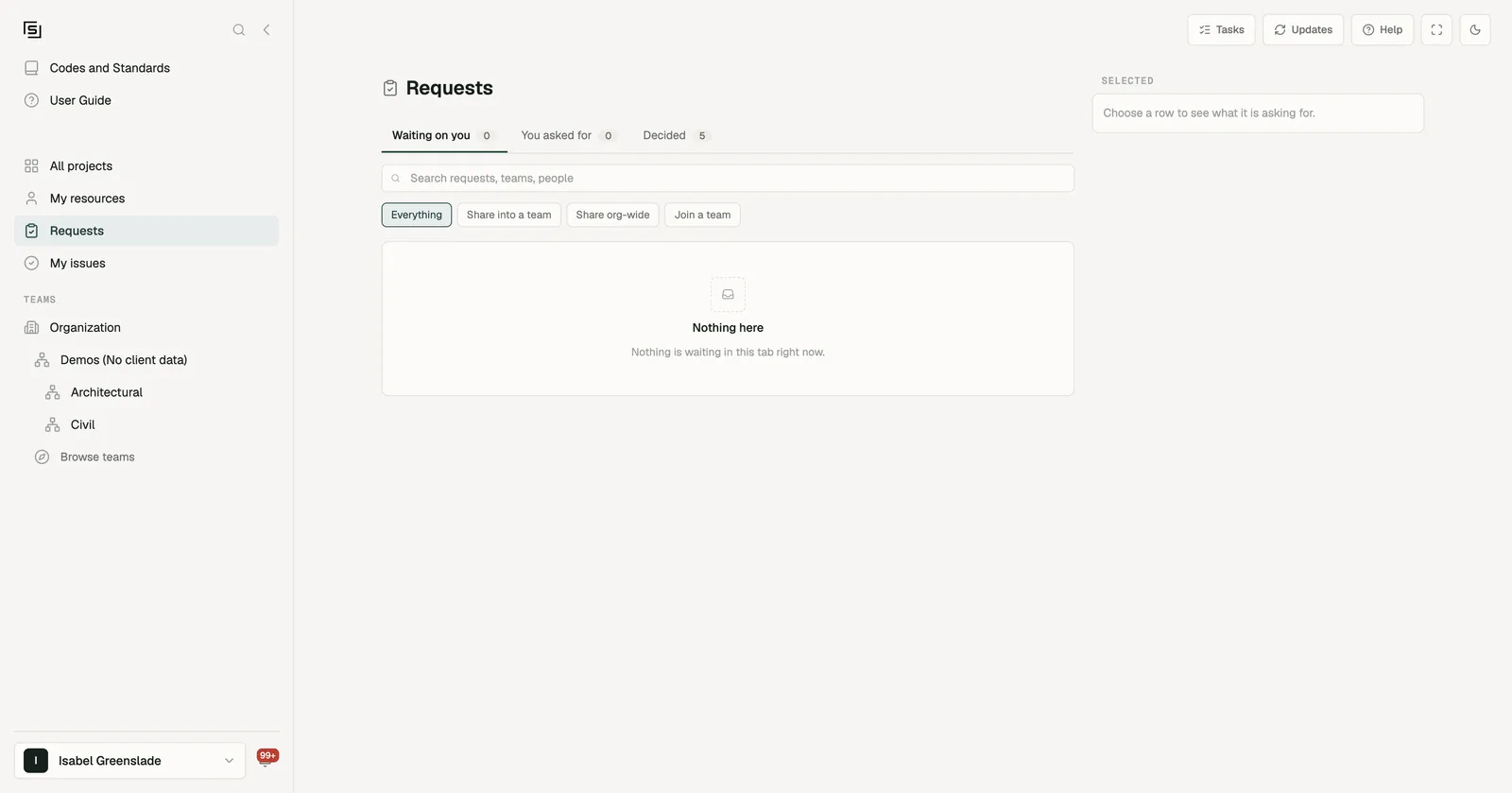
Requests folds every request you can decide into one list: someone asking to share a checklist, workflow or resource into a team you lead, asking to share something with the whole organization, publishing a code book to the organization, or asking to join a team.
Finding what you need
- Tabs: Waiting on you (the default, oldest first), You asked for (requests you've sent) and Decided (approved or declined).
- Kind: Everything, Share into a team, Share org-wide (including code book publication) or Join a team.
- Search across requests, teams and people.
Each row says what's being asked, who asked, and how long ago. A request that has been waiting more than a week is highlighted, because a queue's real cost is the row nobody looked at.
Deciding
Choose a row to see what it's asking for on the right, without leaving the list:
- Share requests open the same review panel as on a team page: the item's details, Approve or Decline…, and the conversation. A decline needs a reason, which the requester reads. See How access works.
- Join requests have Approve and Decline. To answer several at once, tick them (or Select all join requests) and use the bar that appears.
Whatever you decide here is the same decision as on the team page or the Organization page - it's one queue shown in several places, not separate lists to keep in step.
If nothing is waiting, the tab says "Nothing is waiting in this tab right now."
My issues
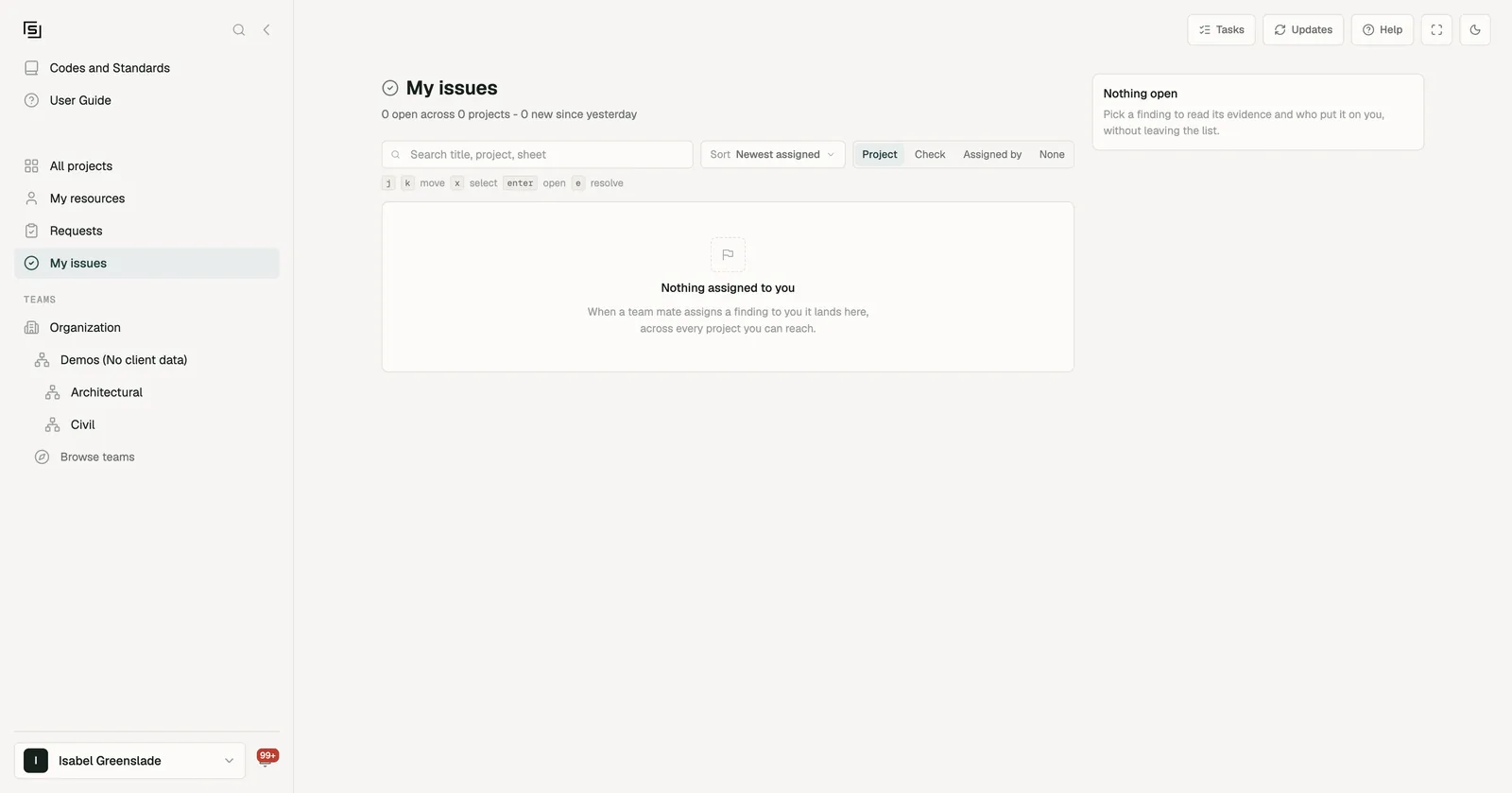
My issues is every open finding someone has assigned to you, across every project you can reach, in one list you can work through. The header sums it up: how many are open, across how many projects, and how many are new since yesterday.
Narrowing the list
- Search by title, project or sheet.
- Filters: Severity, Project, Discipline and Assigned by. Clear filters resets them.
- Group by: None, Project, Check or Assigned by. Each group has Select all in that group.
- Sort: Newest assigned, Oldest assigned or Severity.
A finding you haven't opened yet is marked Not viewed yet.
Reading a finding
Choose a row to open it in the side pane: the evidence snapshot, who assigned it and when, and Open in project to jump to it on the sheet. You don't have to leave the list to decide whether it's yours to fix.
Resolving and waiving
- Resolve closes a finding.
- Waive closes it without a drawing change. A waive needs a reason ("Why this is being closed without a drawing change").
Tick several findings to resolve or waive them together; a waive then takes one reason, applied to all of them.
Both show a toast with Undo. Until the toast goes, nothing has been saved, so Undo puts the findings back exactly where they were.
Only editors on a project can resolve its findings. On a project where you're a viewer, the row says "Editors on this project can resolve".
Keyboard
| Key | Does |
|---|---|
| j / k | Move down / up |
| x | Select the row |
| Enter | Open it in the side pane |
| e | Resolve (the selected rows, or the current one) |
A very long list shows the first batch, with "Showing the first ... - resolve some to see the rest".
Findings are assigned from the project's Issues panel, and assigning one emails the person a link.
On the legacy layout, your assigned findings are under Dashboard → Personal view, and requests are on each team page. See The legacy layout.