Resources
Every firm reviews against more than the drawings: code books, its own drafting and naming standards, a client's standards, review checklists, saved workflows, the spec sections and reference PDFs people keep on their desktops. Resources is where all of that lives. For your team, it's a set of organised folders. Upload a file once, share it with the people who should use it, and pick it up from any project.
Use case: keep your firm's MEP coordination checklist, your client's drafting standard and the code books your jurisdictions use in one place, then pick them from any project when you start a review.
The folders
Resources is in the left rail. It opens on five folders:
- Codes - building, fire, energy and other code books your reviews check against. This opens the code library. See Code Review.
- Standards - your firm's and your clients' own rules: drafting, naming and design standards.
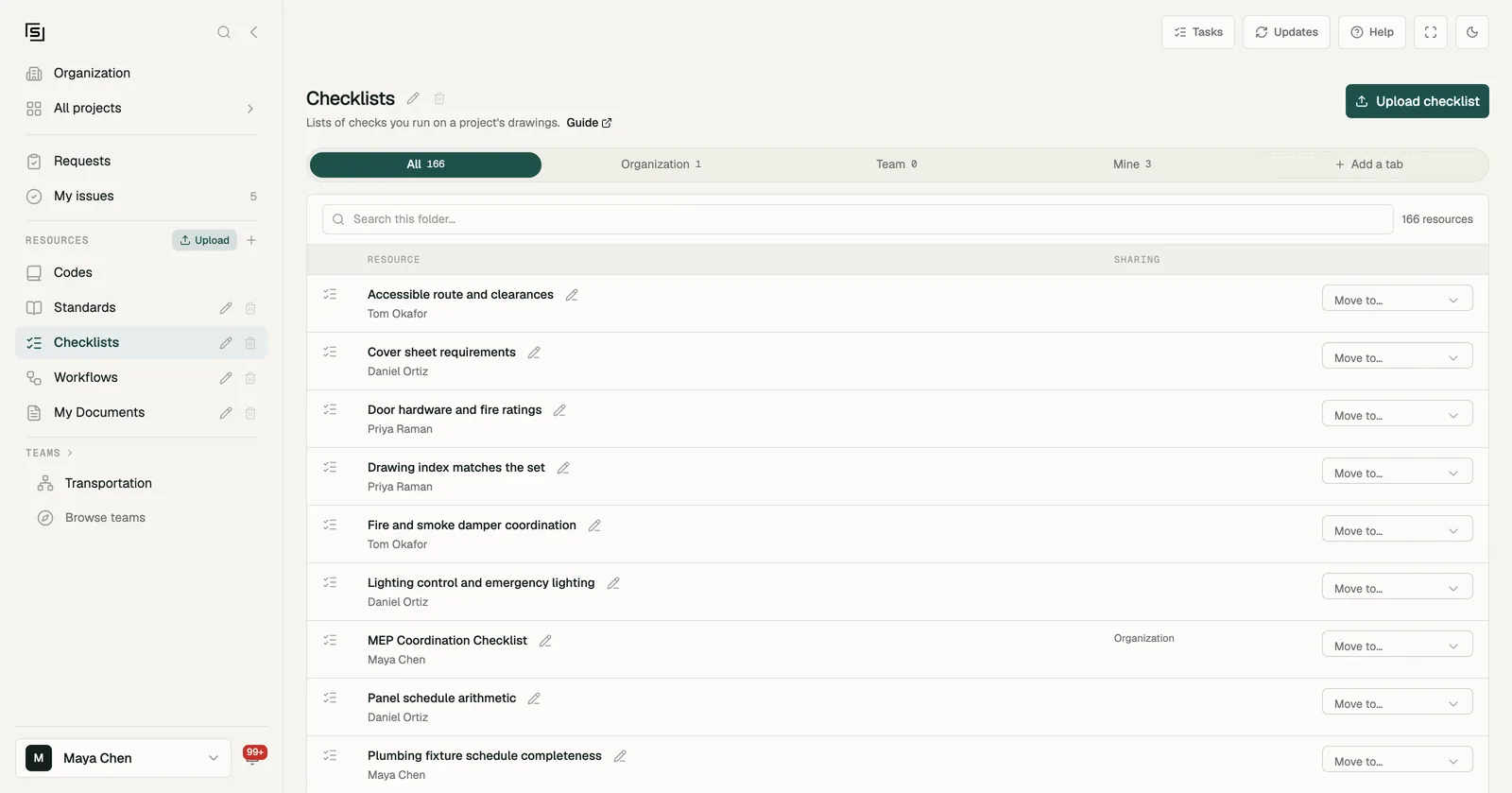
- Checklists - lists of checks you run on a project's drawings, your own and the ones we provide, such as Universal QAQC. See Checklists & custom checks.
- Workflows - saved review instructions you can run again, on the platform, in Revit or in Civil 3D. See Workflows.
- My Documents - other files you want the agents to read, like specs or reference PDFs.
Organization owners can add folders of their own with the + next to Resources, and rename or delete them. Folders are shared by the whole organization. Deleting a folder moves what's in it back to its default folder, and the five default folders can't be deleted.
Tabs
Each folder has tabs that narrow it by who it's shared with: All, Organization, Team and Mine. The Workflows folder splits by where a workflow runs instead: Platform, Revit and Civil 3D. Use Search this folder... to find something by name.
Organization owners can add tabs of their own with Add a tab, and move a resource to another folder with Move to....
Uploading a resource
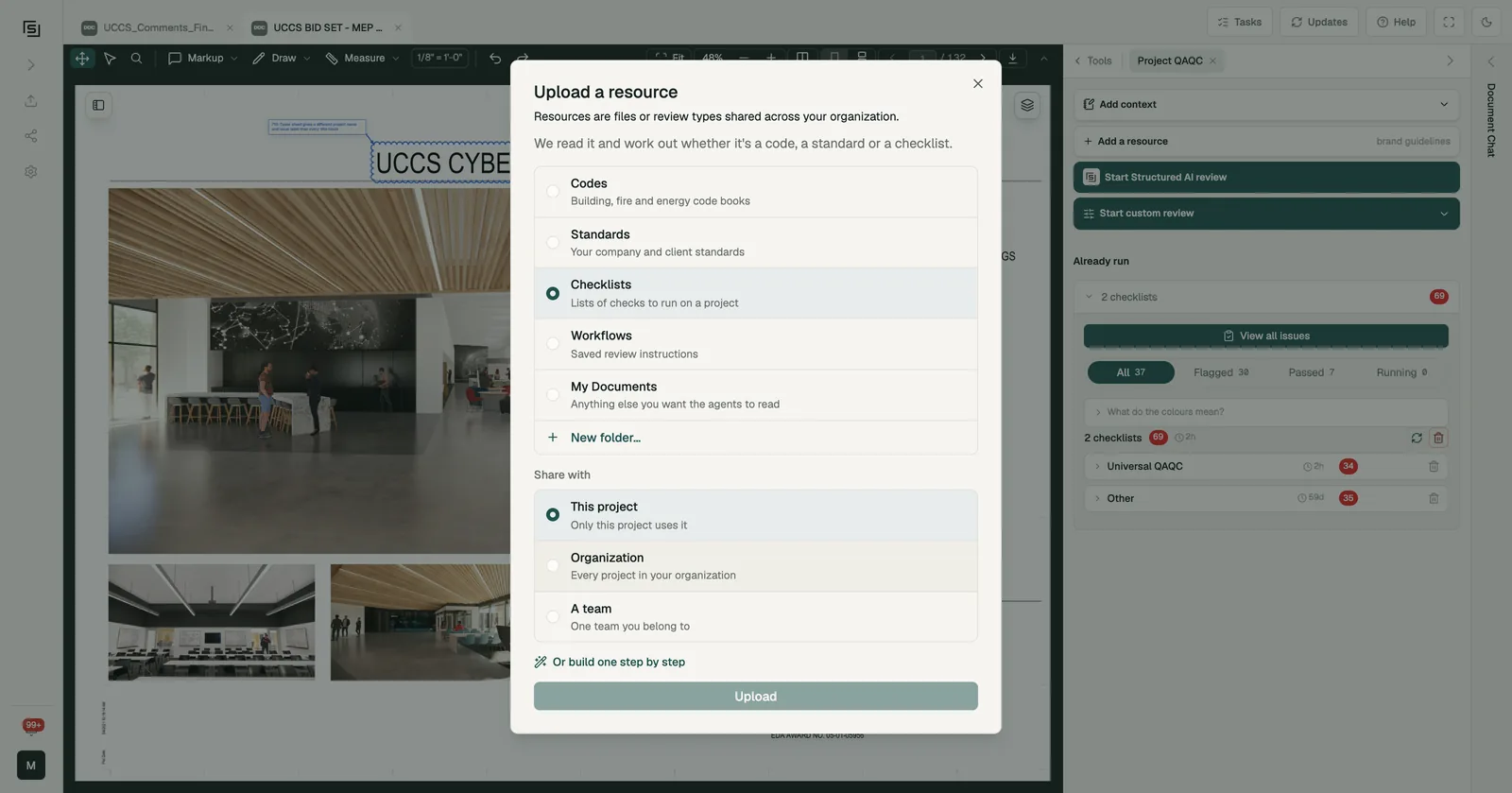
Press Upload next to Resources in the rail, or the upload button at the top of a folder (such as Upload checklist or Upload standard). Drop in a file, choose a folder, and press Upload.
We read every file you upload and tell you what we think it is: "Uploaded. We read it as: a checklist." It can say a code, a checklist, a written standard, or "not sure yet".
Codes and checklists take their own routes:
- A code book goes through the code library's upload, where you choose who can use it before it's added. See Code Review.
- A checklist is read and split into checks you can run. See Checklists & custom checks.
Who can see it
What you put in My Documents is yours alone. Anything uploaded to another folder is shared with your organization. If you're an organization owner it's available straight away; otherwise it waits for an owner to approve it (see Reviews).
When you upload from inside a project, you also choose Share with:
- This project - only this project uses it.
- Organization - every project in your organization.
- A team - one team you belong to.
Reviews
Resources shared with the whole organization are approved before everyone can use them. Organization owners and code library stewards approve them on the Reviews page: code books first, then Other resources. When something is waiting, a folder shows "1 waiting for your review" with a Review button. You can also reach the page from All resource reviews on Requests.
A resource shared with a team is approved by that team's lead or an organization owner. See How access works.
Using resources from a project
Add a resource
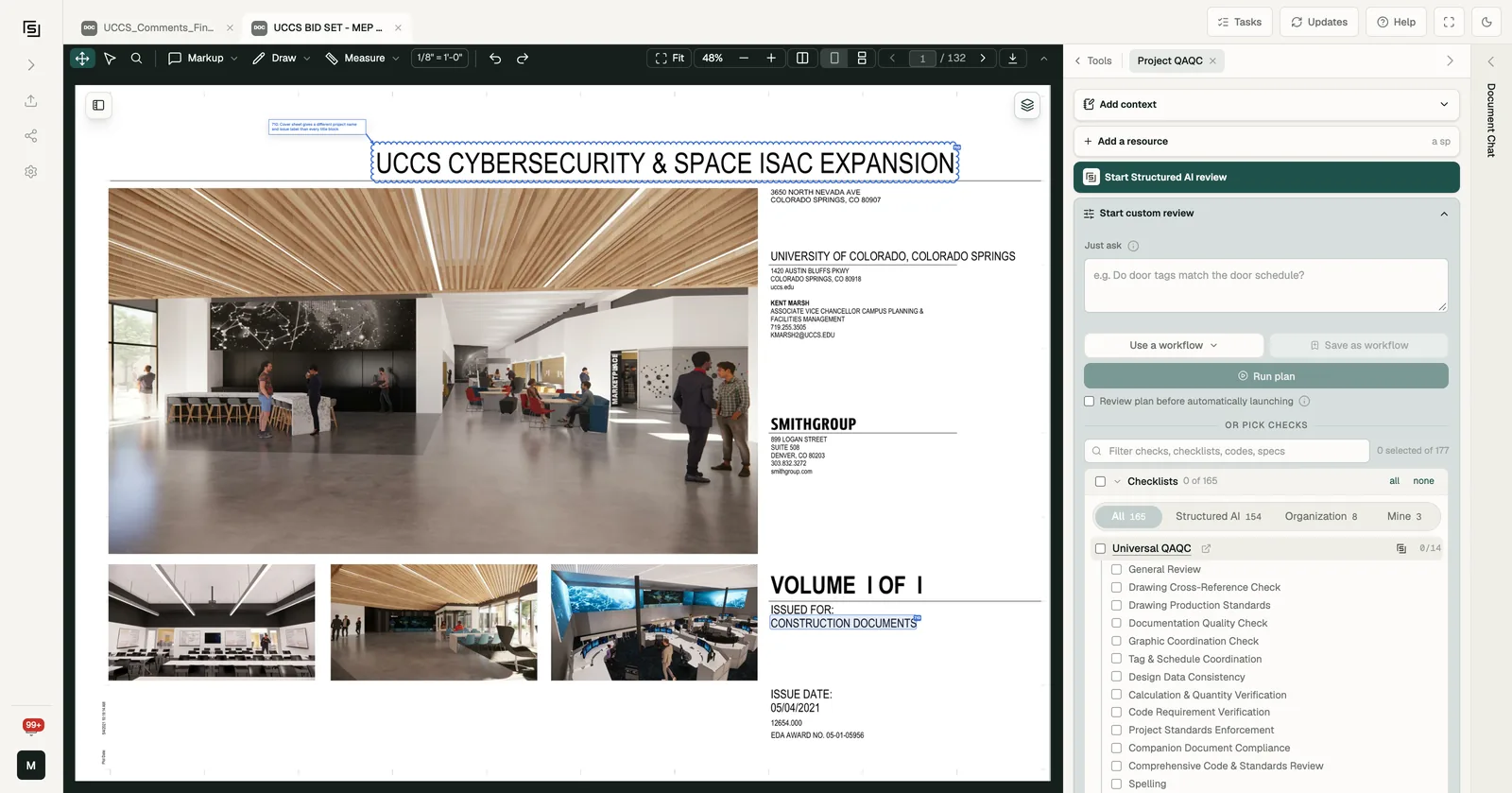
In a project, open Project QAQC and press Add a resource. It opens the same upload, with Share with set to This project. On the Checklists folder you can also choose Or build one step by step to write a checklist with the chat instead of uploading one.
Start custom review
Press Start custom review to choose exactly what to run. Describe what you want under Just ask and press Run plan, or pick it yourself under Or pick checks:
- Checklists - filter by All, Structured AI, Organization or Mine. You can run a whole checklist, or open Universal QAQC and tick only the checks you want, such as Drawing Cross-Reference Check or Tag & Schedule Coordination.
- Codes - the code books on this project. See Code Review.
- Spec audit - pair a spec with the drawings to audit it against. See Spec Audit.
Press Run (it shows how many items you ticked), or Save as workflow to keep the selection for next time. Findings land in Issues.
The project's Resources group
In the project's file panel, under Files and Overlays, Resources lists the codes and standards this project's reviews have cited, most cited first, with how many issues cite each one. Click one to open it. A code that isn't in your code library yet is marked Not in the code library.
Turn a project file into a resource
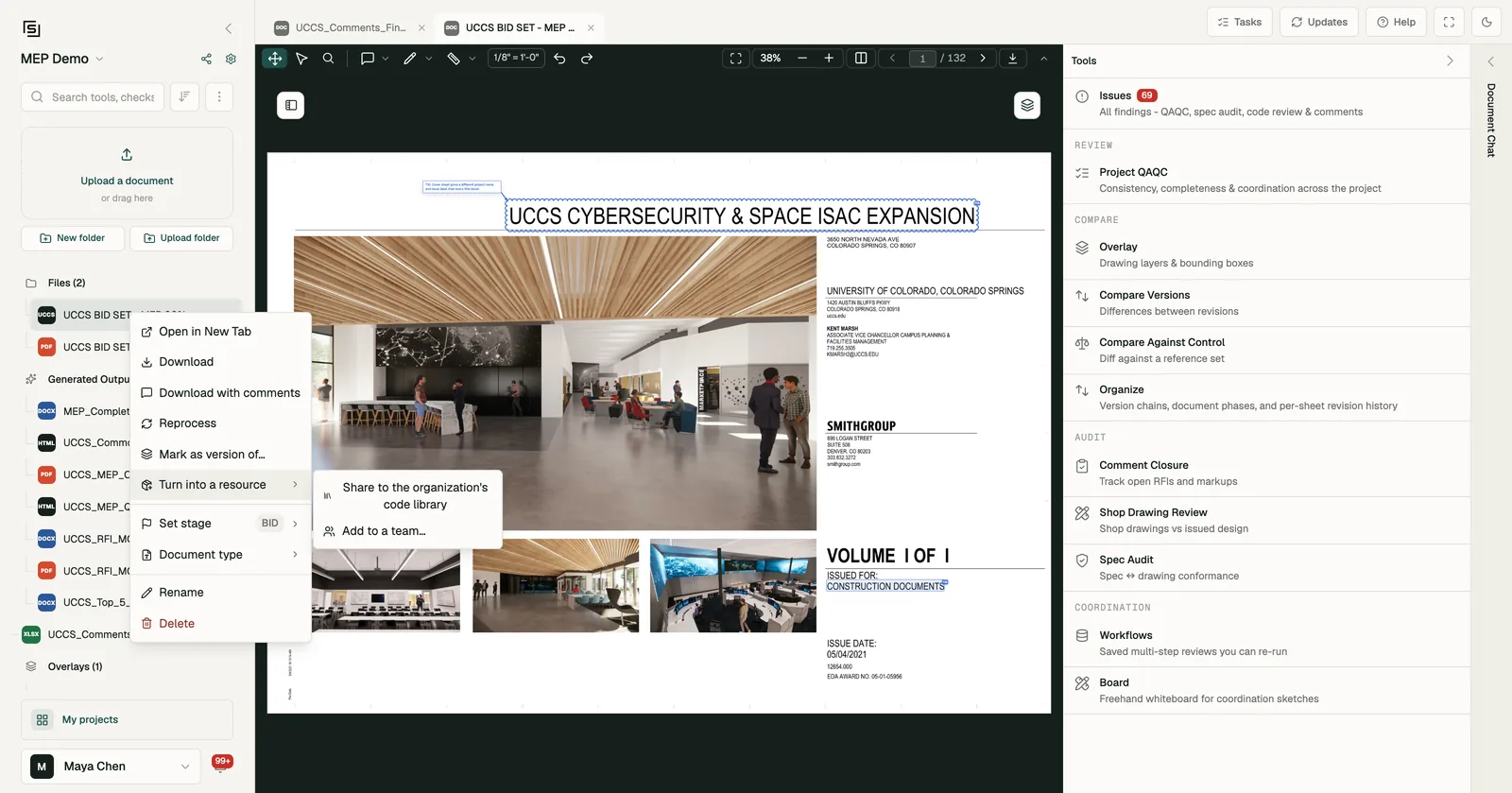
If a file in a project is something the rest of the firm should use, right-click it and choose Turn into a resource:
- Share to the organization's code library - a code library steward reviews it before everyone can use it.
- Add to a team... - the team's lead, or an organization owner, decides.
How resources are used
A resource is used by the reviews you choose to run with it:
- Checklists run as checks in Project QAQC.
- Code books are what Code Review checks the drawings against.
- Workflows run saved review procedures. See Workflows.
- The project chat can find and read the resources you have access to. Ask it about one by name.