Labels
A label describes what something is about - Mechanical, Structural, Telecom. You put labels on yourself, and on checklists, workflows, Revit workflows, resources, check groups and codes. Anything can carry several.
Labels decide what you see first. Lists are narrowed to items that share a label with you, or that have no label at all; the rest are hidden, and the bar above the list says how many. Show all always shows everything.
A label never gives anyone access. Who can open something is decided by teams and sharing. See How access works.
Think of your email inbox
If you use labels in Gmail or categories in Outlook, you already know how labels work here.
- Teams are like shared folders. Putting something in a team's shared folder decides who can get to it. That's the access part.
- Labels are like Gmail labels. One email can carry several: "Mechanical", "Telecom", "Level 3". They help you find things and filter your view. Labelling an email "Mechanical" doesn't send it to anyone, and it's the same here: a label never shares anything.
- Your labels are a saved filter. Structured AI narrows your lists to items that match your labels (or carry none), the way a filtered inbox view does. Everything else is tucked behind "N hidden", not sorted lower. Show all is clearing the filter. Nothing was deleted or hidden from anyone else.
Your labels
Pick your own under Your labels on the Profile panel of Settings (Profile & settings in your account menu), or from Change your labels at the end of the filter bar, which opens that section. Choose what you work on from your organization's list, or add your own.
Your labels only change which items your lists show before you press Show all. They never change what you can open.
The filter bar
When a list has been narrowed by your labels, a bar above it says so:
- "Showing your labels: Mechanical, Plumbing" and how many items are hidden, for example 3 hidden.
- Show all shows everything. The bar then reads "Showing everything", with Only my labels to narrow it again.
- If nothing in the list carries your labels, it says "Nothing here carries your labels", with the hidden count and Show all.
Every version of the bar ends with Change your labels, which takes you to yours.
If nothing is hidden, or you haven't picked any labels, there's no bar.
You'll see it on team pages (the Codes tab too), the Organization page and My resources, on the checklists and check groups in a project's QAQC panel, on workflow lists, and in the code library.
The label filter bar above a checklist list, showing how many items are hidden and Show all
Labelling things
Checklists, workflows, Revit workflows, resources, check groups and codes carry labels. Use Labels… on a row in a list to change them.
You can also label something as you make it: new checklists and workflows, and resources you upload, have a Labels field on the way in. On a resource it's always optional.
Your organization's labels
Every organization starts with seven: Architectural, Structural, Electrical, Mechanical, Plumbing, Fire protection and Civil.
An org owner manages the list on the Organization page's Labels tab. Add a label adds one. The pencil beside a label renames it - everything already carrying it keeps it under the new name, and a name that's already taken is refused. Deactivate takes one out of use (it shows as "Deactivated" in the picker), and Reactivate brings it back.
Each label shows how much it's used: how many people carry it and how many items are labelled with it, for example "4 people · 12 items", or "Not used yet".
On the legacy layout, the list is on the Dashboard's Teams tab, under Labels. See The legacy layout.
The members table on the Organization page's Members tab shows each person's labels, and an owner can add or remove a label for many people at once. See Organization members & invites.
Requiring labels
Teams and labels can always be used. An org owner can also make them required, with Require teams and labels on the Organization page's Labels tab, under the list (it's also shown, read-only, on the Settings tab). When it's on:
- Everyone must choose at least one label for themselves.
- Every new project must be put in a team.
- Every new checklist and workflow you or the assistant make needs a label: uploaded checklists, workflows saved from the Workflows panel or a project's QAQC panel, and checklists and workflows made in chat. Saving a workflow again under one of your titles that already has a label counts as labelled.
Checklists and workflows made in chat, and checklists written from your words in Just ask, are labelled for you, whether or not labels are required: the assistant picks the labels from your organization's list that fit what the checklist or workflow checks, and tells you where it filed it. It never makes up a new label. When the assistant adds to a checklist or saves a workflow again, it adds the labels that fit what it just built. Once you have set a checklist's or workflow's labels yourself with Labels…, the assistant leaves them as you set them. To change them, use Labels… on its row. When labels are required and no label could be chosen for a Just ask request, that checklist isn't written and the plan says why.
Only what the system creates on its own is exempt: projects added by the Revit and Bluebeam integrations, and checklists created by automated Global QA sweeps or by Structured's own support tooling. Resources are never required to carry a label.
If you switch it on while your organization has no labels, the switch warns you: everyone will be asked to type a label of their own. Add a few first to give people a list to pick from.
Choose your labels
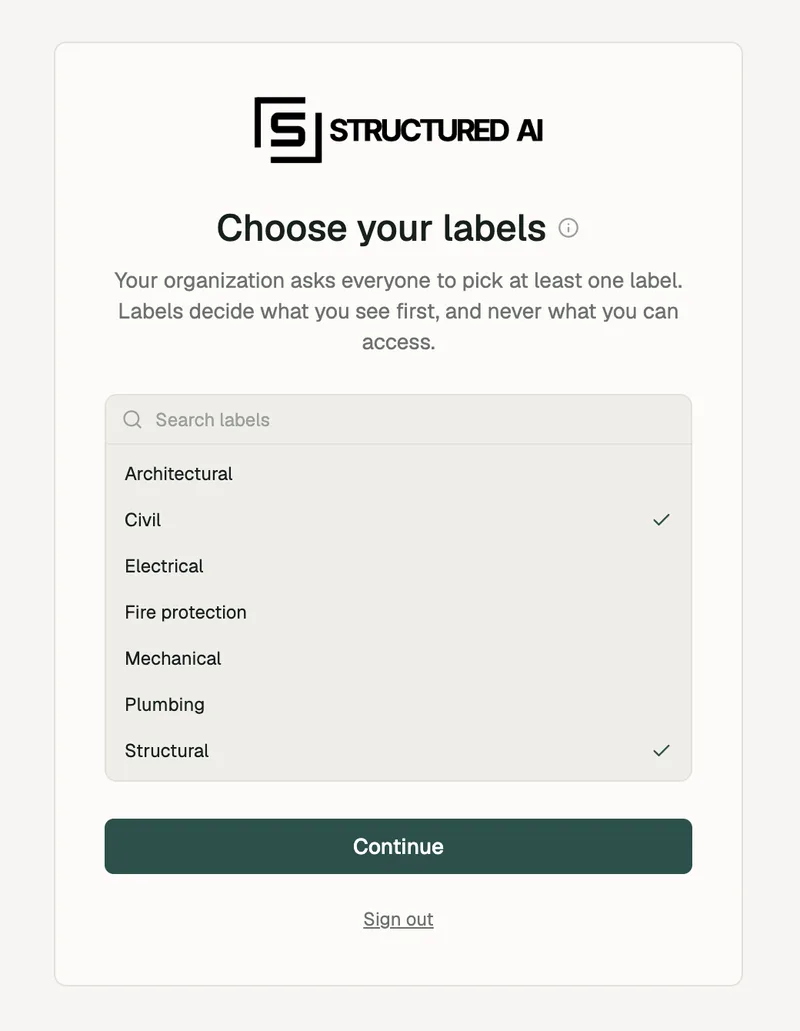
When it's switched on and you don't have a label yet, the next page you open - even if you were already signed in when it was switched on - is Choose your labels: "Your organization asks everyone to pick at least one label. Labels decide what you see first, and never what you can access." Pick at least one and press Continue to carry on where you were going.
Labels and teams
They look alike and do different jobs, like shared folders and labels in an inbox:
| Teams (shared folders) | Labels (email labels) | |
|---|---|---|
| Decide who can open things | Yes | No |
| Who sets them | An org owner (and team leads for their teams) | You, for yourself; owners for the list |
| What they do to a list | Only show what's shared with you | Show your labels first, with Show all |