Checklist editor
A checklist that runs well on one project can still send back things your team doesn't want: typos you fix at issue, a finding raised once per sheet when once per panel is enough, a severity that's too low for something you care about. The checklist editor is where you say so. Write it the way you'd brief a colleague, rate a few of the issues it found, and save. The next run takes it in. Each run gets closer to what your team wants.
Your checklist items are not rewritten. Edits are added on top of them, every edit is logged with who made it and when, and any of them can be undone.
Use case: tell your MEP coordination checklist to stop flagging sheet-index typos and to mark every equipment clearance problem High, so the next run on the job comes back the way your reviewers want it.
Where to find it
Look for the pen button, Edit checklist. It's in five places:
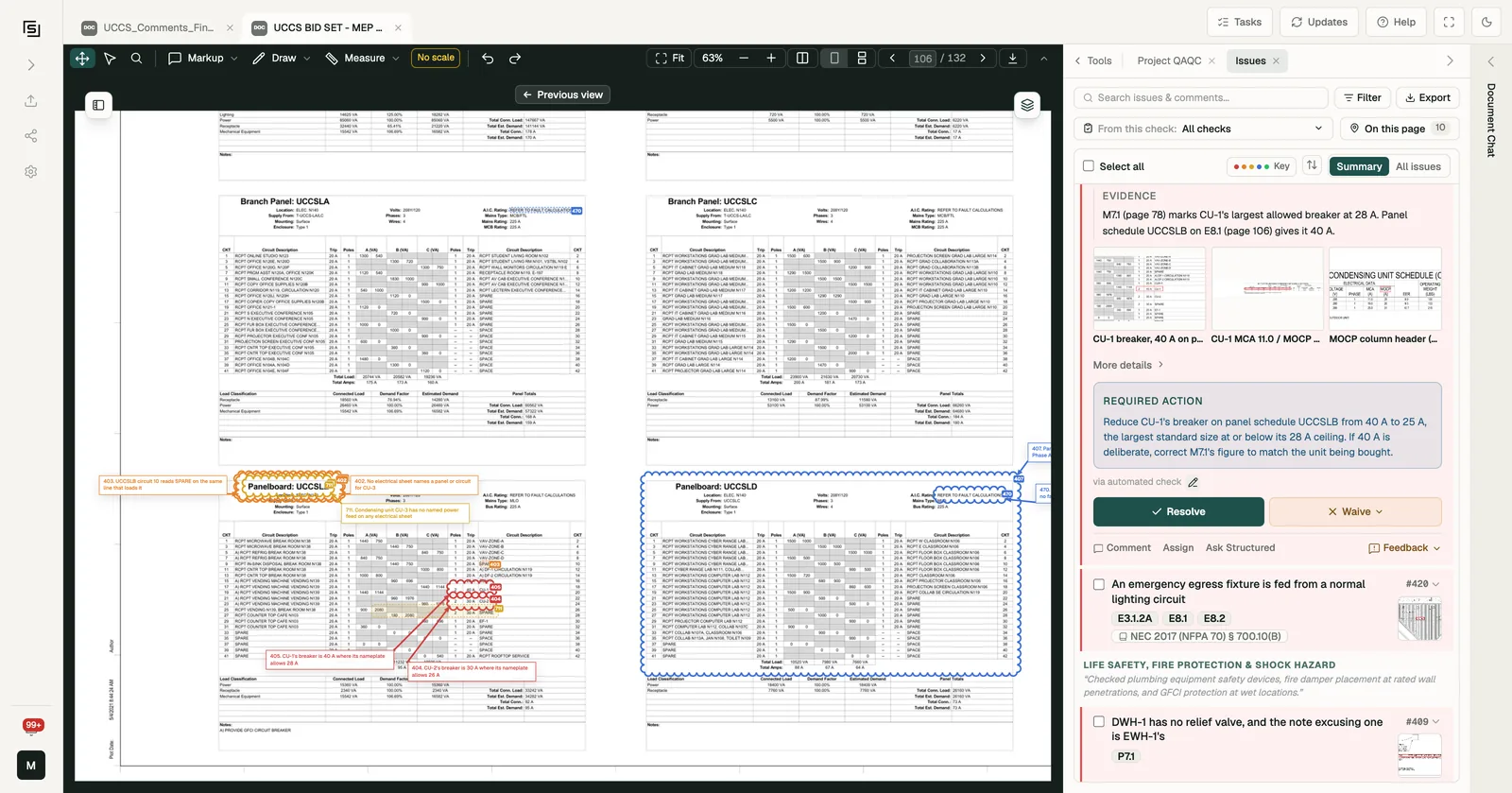
- On an issue card. Open an issue from a checklist in Issues. The pen sits just above Resolve, next to where the issue came from. This is the quickest way in: the issue you're looking at is already loaded for you to rate.
- In the review pick list. In Project QAQC, open Start custom review and hover a checklist row.
- On a checklist's results. Under Already run in Project QAQC, on the header of a checklist's results.
- In the Checklists folder. In Resources, next to the checklist's name.
- On the checklist page. Next to the checklist's title.
On the legacy layout there is no Checklists folder: open Dashboard → Personal view → My library, then a checklist's ⋮ menu → Edit checklist. The other four places are the same. See The legacy layout.
You'll only see the pen on checklists you're allowed to change. By default that is ones you created, any checklist in your organization if you're its organization owner, and ones shared with a team you lead. An org owner can change who else may edit in Permissions. See Sharing.
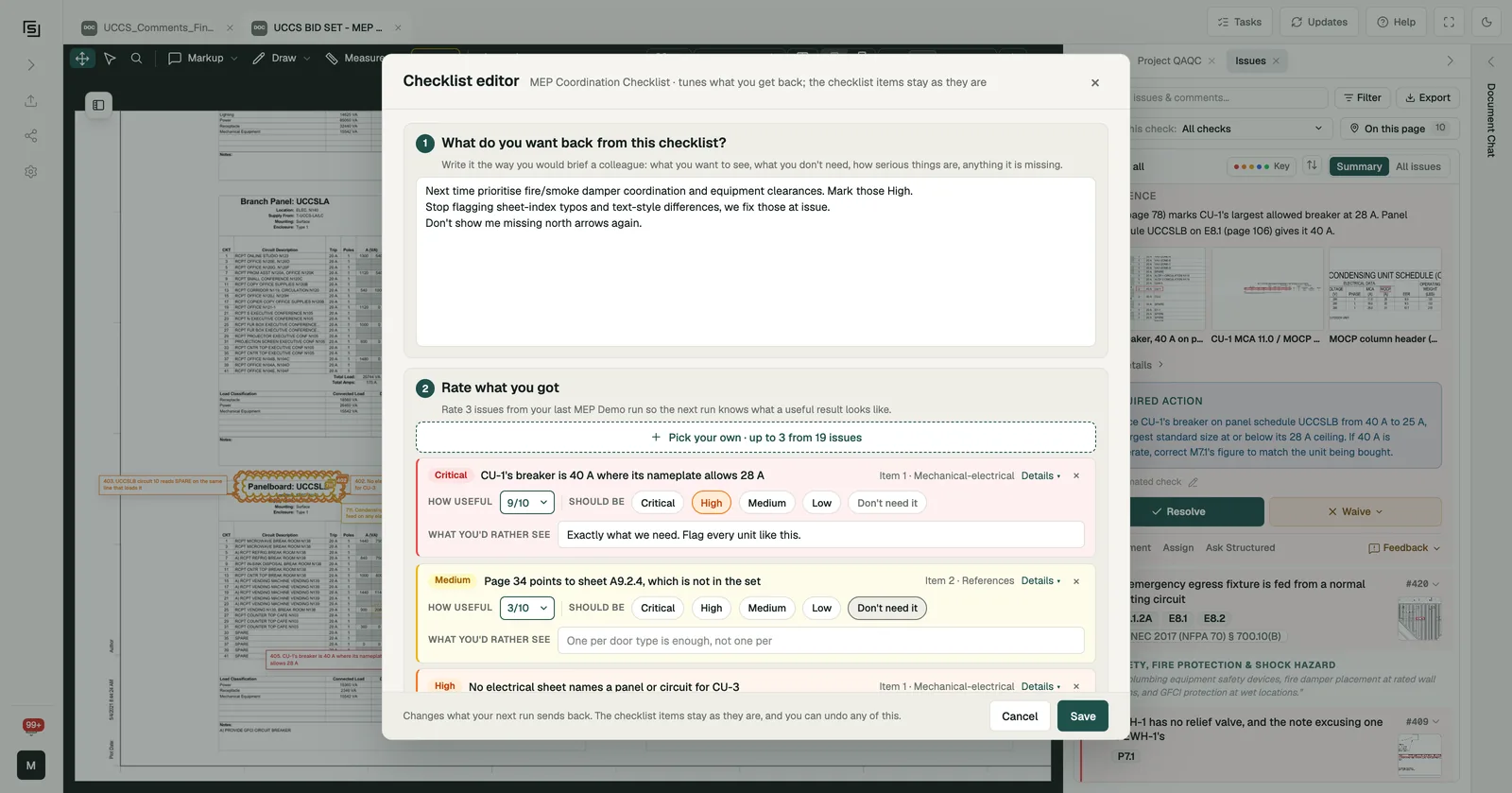
Step 1: say what you want back
The editor opens on What do you want back from this checklist? Write it the way you would brief a colleague: what you want to see, what you don't need, how serious things are, anything it is missing. Put each instruction on its own line. For example:
Next time prioritise fire/smoke damper coordination and equipment clearances. Mark those High.
Stop flagging sheet-index typos and text-style differences, we fix those at issue.
Don't show me missing north arrows again.
Each line is saved as its own edit, so you can undo one later without losing the others.
Step 2: rate what you got
When you open the editor from a project (from an issue card, the pick list or a checklist's results), a second step appears: Rate what you got. It shows three issues from the latest run of the checklist's items on that project, one from each of the items that found the most. Issues someone resolved or waived on an earlier run don't count towards this. Rating a few tells the next run what a useful result looks like. Opened from an issue card, that issue is the first of the three.
For each issue:
- How useful - a score out of 10.
- Should be - the severity it should have had: Critical, High, Medium or Low. Or Don't need it, if issues like this one aren't worth raising at all. Your score is kept either way.
- What you'd rather see - a line of feedback, such as "One per door type is enough, not one per door" or "Not useful on standard detail sheets".
Each rating is saved with the issue it rates, so the next run is told which issue you scored, how useful you found it, and what you'd rather see. Leave a card untouched and it isn't saved. Remove one with ×, or press Pick your own to choose up to three issues yourself. You can narrow the list to one group of issues, search it, and filter by severity or status.
Press Save. You'll see "Saved. Your next run will reflect this." Runs that have already happened are not changed. The next run of the checklist, on this project or any other, reads your edits.
You can also ask the chat in a project to change a checklist for you. Its changes go into the same log, marked chat.
The edits log
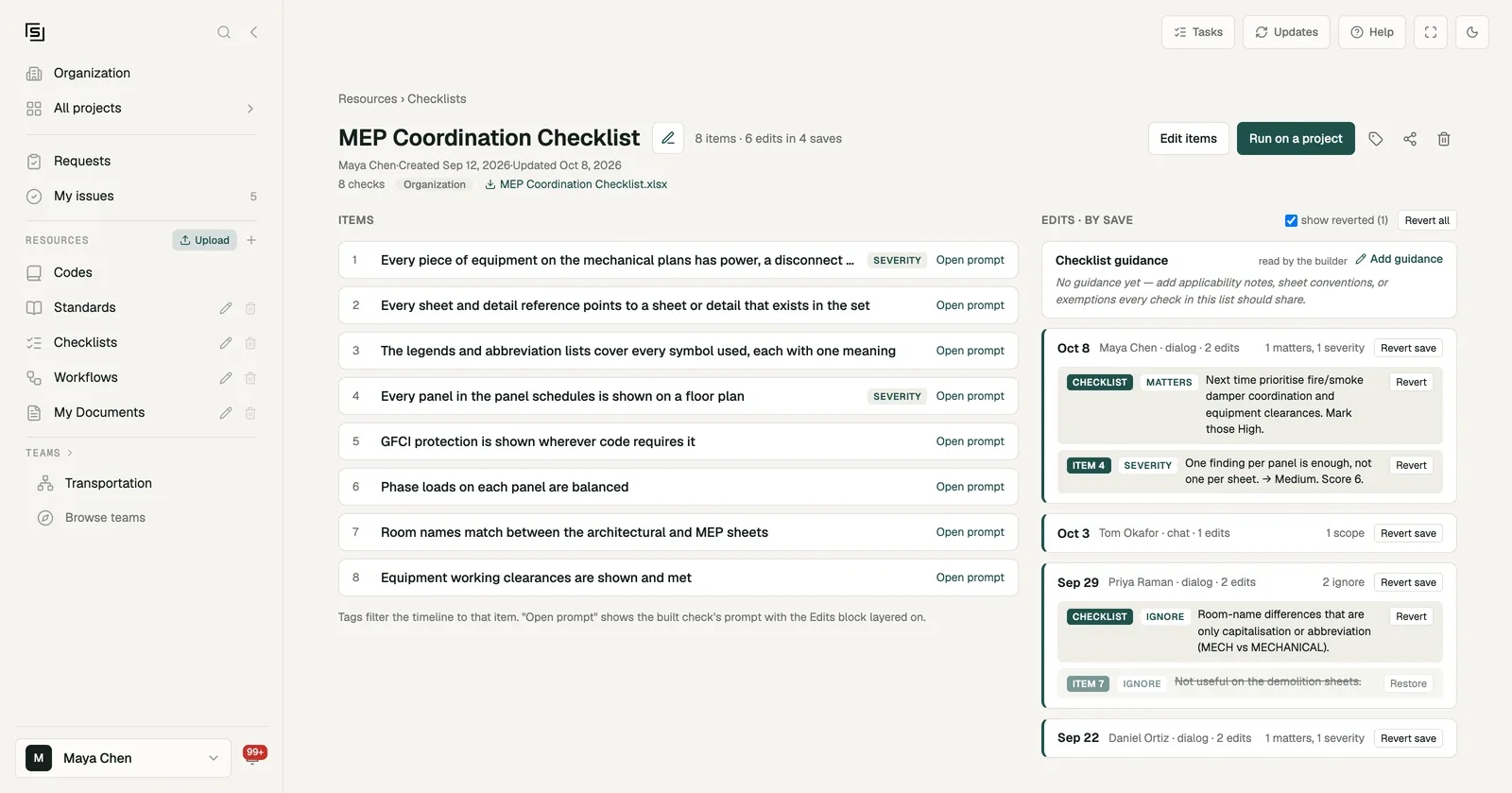
Open the checklist (from the Checklists folder in Resources) to see everything that has been changed. The right-hand column, Edits · by save, lists each save with its date, who made it, whether it came from the editor or the chat, and what it changed. Expand a save to see each edit, tagged with what it applies to (the whole Checklist, or one Item) and its kind:
- matters - something you want it to look for or prioritise.
- ignore - something you don't need.
- severity - a rated issue: the severity it should have and how useful it was, out of 10.
- scope - what the checklist should look at (set from the chat).
- added - a new item added to the checklist (from the chat).
To undo, press Revert on one edit, Revert save to undo everything in one save, or Revert all. Nothing is deleted: tick show reverted to see edits that were undone, and Restore to bring one back.
Reverting an added item takes the item off the checklist, so no run checks it. Restore brings back that same item: its name, its place in the list, its own edits and its past issues. It doesn't have to be built again.
What the run sees
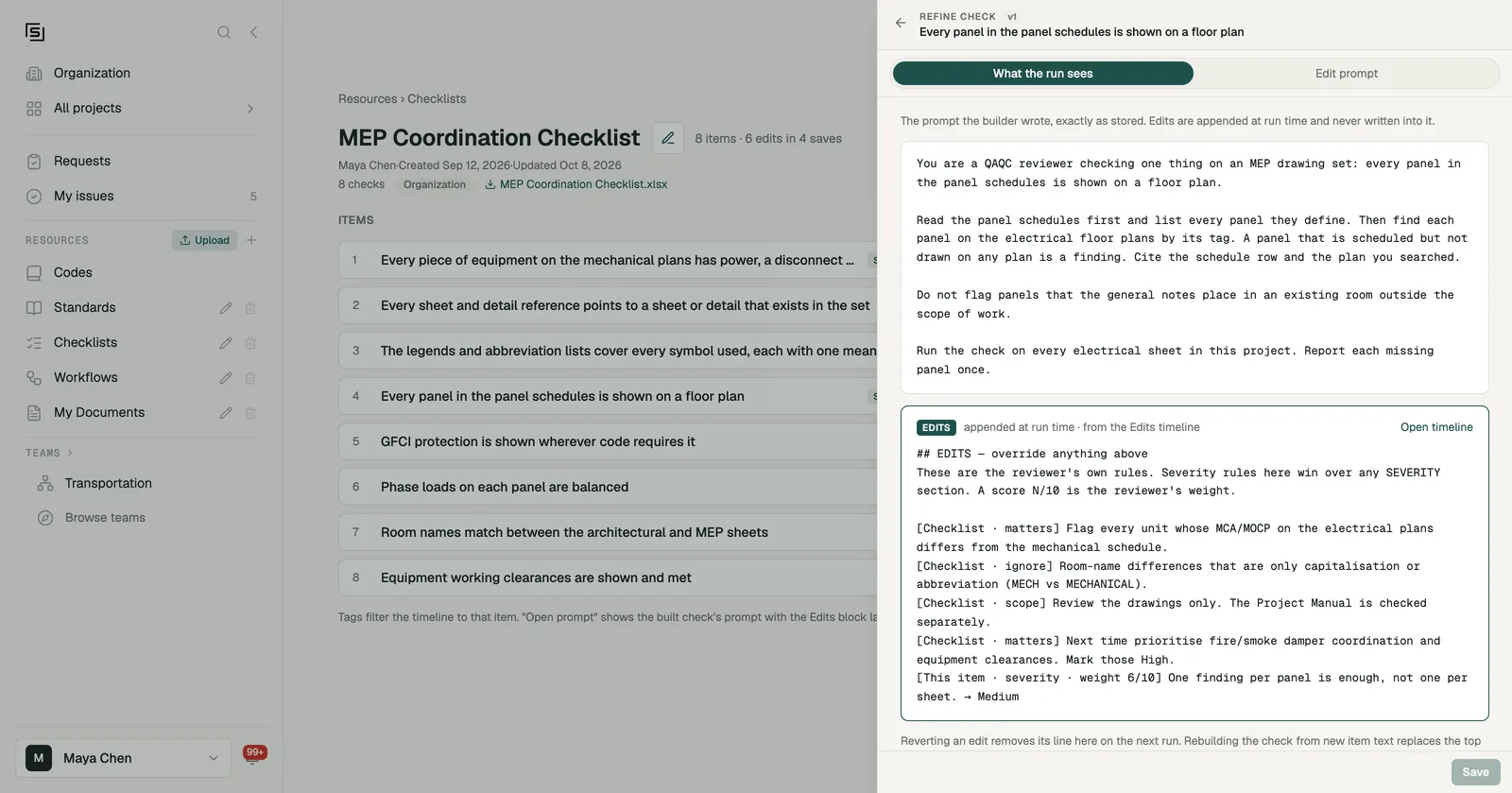
To check exactly what the next run will receive, press Open prompt on an item and open What the run sees. It shows the item's instructions with your active edits added at the end, under "EDITS - override anything above". A rated issue's line names the issue and says how useful you found it, for example "usefulness 9/10". Your edits win over the checklist's own severity rules. Revert an edit and its line is gone from the next run.
Every way of starting a run reads your edits: Run on the checklist, Run or Re-run on one check, ticking checks in Project QAQC, Start new review and the chat. Cross-sheet, measuring and sweep items read them too. A run you start after changing the edits is never turned away as a repeat of the last one on the same drawings. One check doesn't: the Spelling check (UQA-12) in Universal QAQC. Its issues aren't offered for rating, an edit on it can't be saved, and What the run sees says it doesn't read edits. Edits on Universal QAQC as a whole still apply to its other checks.
Built-in checklists
Built-in checklists such as Universal QAQC work the same way as your own: you can run, share, download and edit them, including rating their issues. By default the same people can edit them: your organization owner, or the lead of a team the checklist is shared with. An org owner can change this in Permissions. Everyone else who can see a built-in checklist can read it and its edits. Edits to a built-in checklist apply to every project in your organization, and our checklist updates never overwrite them.
A built-in checklist can't be deleted, but whoever can edit it can hide it. Its checks' own instructions stay with our team: you change what it flags with edits.
The Checklist editor on Universal QAQC from MEP Demo, with an issue rated