Shop Drawing Review
Shop drawing review is slow, repetitive, and high-stakes: a deviation you miss becomes a change order later. Shop Drawing Review reads the whole project, works out which drawings are under test and which ones they have to follow, and flags every place the two disagree.
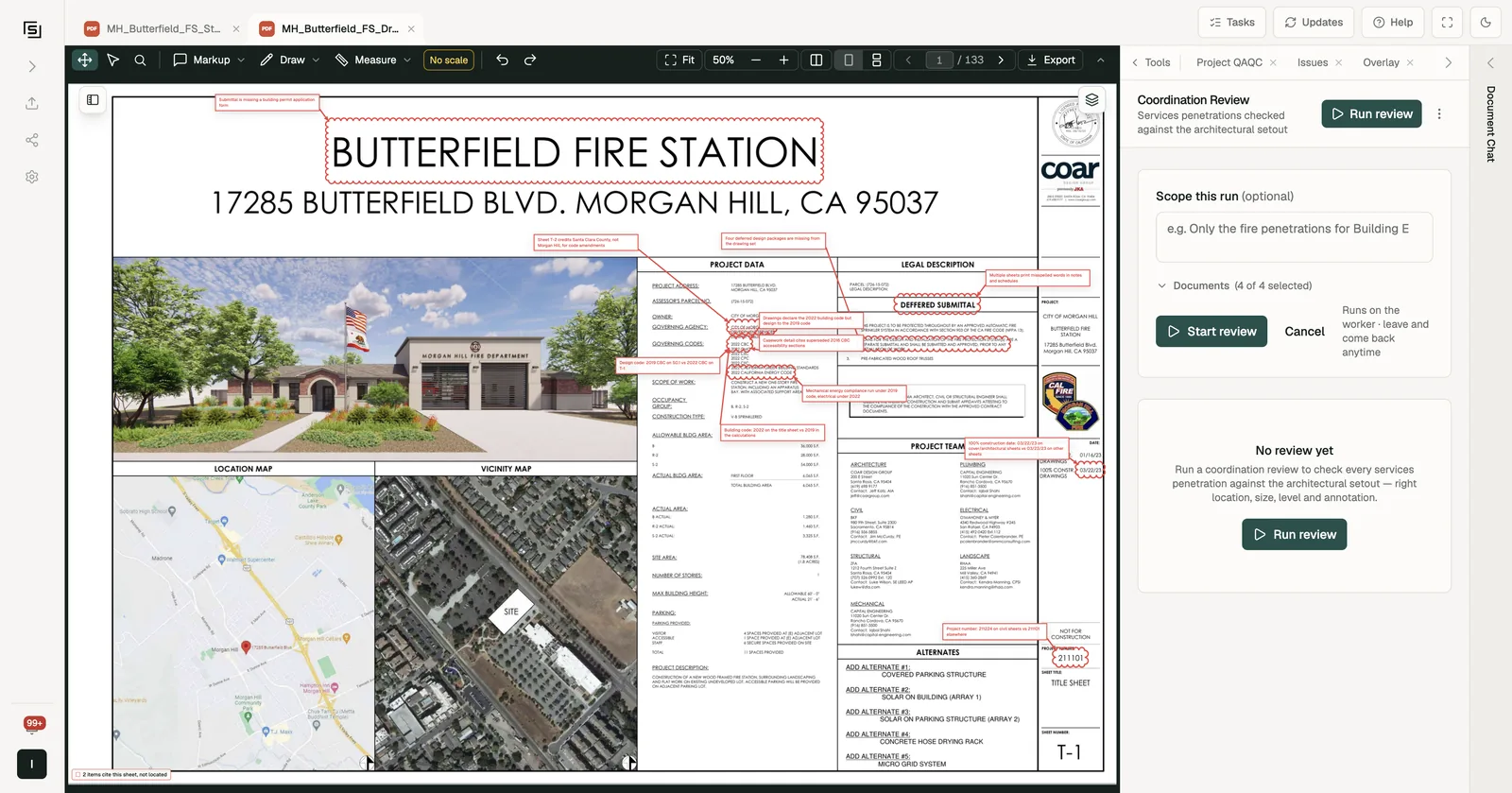
Inside the tool the panel is titled Coordination Review. Out of the box it checks every services penetration against the architectural setout: right location, size, level and annotation.
Use case: confirm every fire penetration on the services set sits where, and at the size, the architectural setout shows it.
Shop Drawing Review is enabled per organization. If you don't see it in your project's Tools panel, talk to us.
Running a review
- In a project, open Shop Drawing Review from the Tools panel (under Audit).
- Press Run review.
- Optionally, say what to focus on under Scope this run - for example "Only the fire penetrations for Building E".
- Open Documents to narrow the run to particular files. By default every document in the project is used.
- Press Start review. It runs in the background, so you can leave and come back. If it takes a while, we email you when it's done (see Notifications).
A review won't start while the project's documents are still uploading or being read. It tells you why next to the button, so try again once processing finishes.
Big projects: Review all
On a large set, one run may not cover everything. The panel says so when it thinks that's likely, and offers Review all. You can also find it in the ⋯ menu next to Run review: "Review all (fan out per discipline/building)". It splits the project by discipline and building and runs a review for each, in parallel.
Reading the results
Results are grouped so you can see the whole project at a glance:
- The total number of coordination issues, split into major, moderate and minor.
- By discipline - one card per discipline. A Verified card has been reconciled against a schedule. A Needs review card was auto-detected: open its review and spot-check each finding against the drawings. Out of the box, fire is reconciled to the penetration schedule, and electrical and mechanical are auto-detected.
- Coverage - a table of issues per building for each discipline.
- Reviews - one row per discipline and building. Open a row to see its full report.
Inside a report
Each report shows what the drawing under test says next to what the governing drawing requires, with a cropped image of each side, so you can make the call without flipping between sets.
Above the report you'll see:
- Scope - what that run was narrowed to, with Reuse scope to run the same focus again on the next submittal. A run with no scope says "Whole project - no scope prompt".
- Coverage: examined X of Y sheets - expand it to see exactly which sheets were examined and which were skipped, so you know nothing was silently left out.
- Open in new tab and Download PDF to share the report.
Scanned pages with no text layer are looked at as images, not treated as blank.
Findings in Issues
When a review finishes, every finding is added to the project's Issues automatically. Each issue shows the two drawings side by side and links to both spots, so it's ready to assign and track like any other finding.